Template:R36S ArkOS Menu Navigation: Difference between revisions
From Handhelds Wiki
Jump to navigationJump to search
HandheldWiki (talk | contribs) m 1 revision imported |
HandheldWiki (talk | contribs) →Search: If it does not work, you may need to activate "All Games" under Game Collection Settings > Automatic Game Collection. |
||
| (2 intermediate revisions by the same user not shown) | |||
| Line 10: | Line 10: | ||
<div><ul> | <div><ul> | ||
<li style="display: inline-block; vertical-align: top;"> [[File:R36S-ArkOS-RETROARCH3.png|thumb|none|400px|The versatile RetroArch emulator frontend with lots of options and customizations]] </li> | <li style="display: inline-block; vertical-align: top;"> [[File:R36S-ArkOS-RETROARCH3.png|thumb|none|400px|The versatile RetroArch emulator frontend with lots of options and customizations]] </li> | ||
<li style="display: inline-block; vertical-align: top;"> [[File:R36S-ArkOS-DRASTIC.png|thumb|none|400px|Drastic for NDS games]] </li> | <li style="display: inline-block; vertical-align: top;"> [[File:ArkOS-R3XS-new-DS-emulator.png|thumb|none|400px|New Steward-NDS menu for NDS games (added in (11072025) Release]] </li> | ||
<li style="display: inline-block; vertical-align: top;"> [[File:R36S-ArkOS-DRASTIC.png|thumb|none|400px|Old Drastic menu for NDS games]] </li> | |||
<li style="display: inline-block; vertical-align: top;"> [[File:R36S-ArkOS-PPSSPP.png|thumb|none|400px| PPSSPP for PSP games]] </li> | <li style="display: inline-block; vertical-align: top;"> [[File:R36S-ArkOS-PPSSPP.png|thumb|none|400px| PPSSPP for PSP games]] </li> | ||
</ul></div> | </ul></div> | ||
| Line 134: | Line 135: | ||
Press Y to activate the quick search function. | Press Y to activate the quick search function. | ||
If it does not work, you may need to activate "All Games" under Game Collection Settings > Automatic Game Collection. | |||
<div><ul> | <div><ul> | ||
| Line 142: | Line 145: | ||
<li style="display: inline-block; vertical-align: top;"> [[File:R36S-ArkOS-gamelist-search6.png|thumb|none|400px]] </li> | <li style="display: inline-block; vertical-align: top;"> [[File:R36S-ArkOS-gamelist-search6.png|thumb|none|400px]] </li> | ||
</ul></div> | </ul></div> | ||
== Custom Game Collection == | == Custom Game Collection == | ||
| Line 151: | Line 152: | ||
# Now you can add/remove games with the Y button. Using the quick search function is very helpful for this. | # Now you can add/remove games with the Y button. Using the quick search function is very helpful for this. | ||
# When you are finished, you need to confirm it in the settings ("FINISH EDITING COLLECTION"). | # When you are finished, you need to confirm it in the settings ("FINISH EDITING COLLECTION"). | ||
# To restart the function for adding more games, press select in the gamelist | # To restart the function for adding more games, press select in the gamelist and choose "ADD/REMOVE GAMES TO THIS GAME COLLECTION". | ||
<div><ul> | <div><ul> | ||
Latest revision as of 16:19, 7 March 2026
SYSTEMLIST[edit]
-

Screenshot of a freshly flashed ArkOS Community Maintained Image with standard ES-THEME-NES-BOX

Emulators[edit]
These are the most used Emulators with an accessible menu and configurable options. A full list of emulators and RetroArch cores can be found on the ArkOS Wiki.
-

The versatile RetroArch emulator frontend with lots of options and customizations -
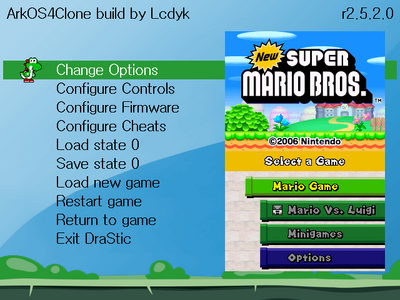
New Steward-NDS menu for NDS games (added in (11072025) Release -
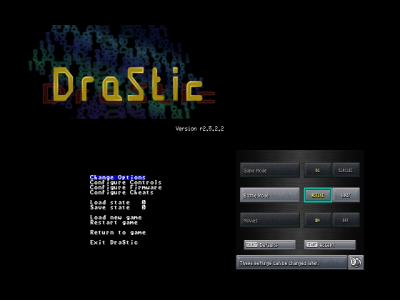
Old Drastic menu for NDS games -
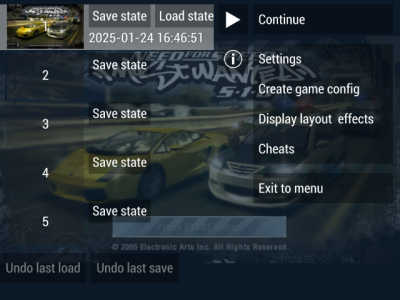
PPSSPP for PSP games


Options[edit]
-

-

-

-

ADVANCED -

ADVANCED -

TOOLS -

351FILES -

CHANGE TIME -

ENABLE REMOTE SERVICES (for SSH connection -

FILE MANAGER -
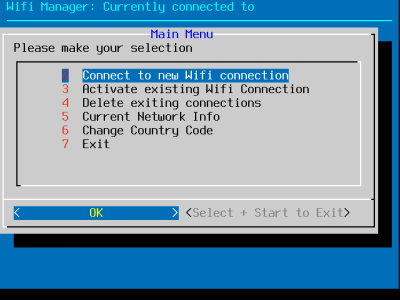
WIFI


Custom Options[edit]
Plymouth Theme Selector by Sucharek233[edit]
Reddit thread / guide: https://www.reddit.com/r/R36S/comments/1gnri3v/plymouth_theme_selector/
Download: https://drive.google.com/file/d/1SR_N3XlwQMJTkAR9RnmhG-ZfZOk_3vwq/view?usp=sharing


Update[edit]
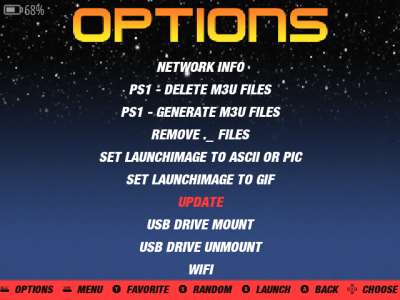
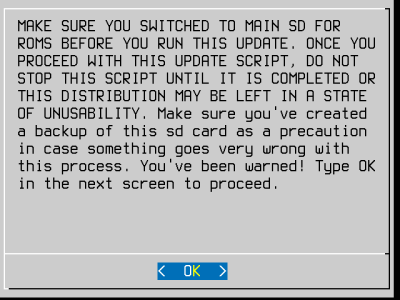
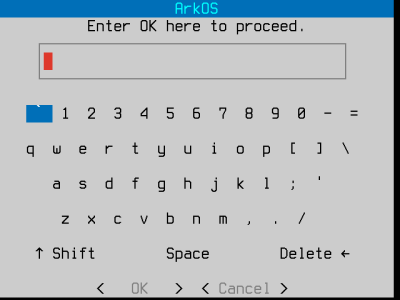
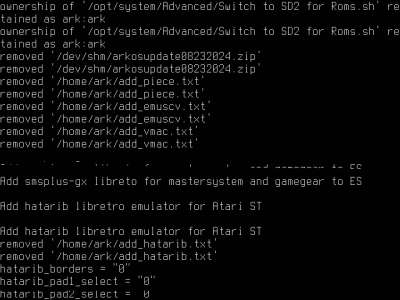
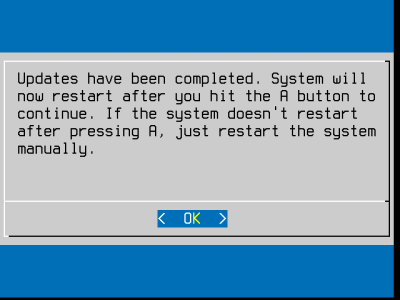
Go to Options and click on UPDATE, then follow the prompts and wait for it to download and install.
-

Before update: 07042024 version -
-
-
-

-

-
-
-

After Update: 08232024 version


Main Menu Options (Emulationstation)[edit]


THEMEMASTER[edit]


PORTMASTER[edit]


GAMELIST[edit]
-

-

-

GAMELIST-VIEW-STYLE-BASIC ES-THEME-NES-BOX -

GAMELIST-VIEW-STYLE-BASIC ES-THEME-SWITCH -

GAMELIST-VIEW-STYLE-DETAILED ES-THEME-NES-BOX -

GAMELIST-VIEW-STYLE-GRID 3x1 ES-THEME-SWITCH -

GAMELIST-VIEW-STYLE-GRID 3x2 ES-THEME-SWITCH


Search[edit]
Press Y to activate the quick search function.
If it does not work, you may need to activate "All Games" under Game Collection Settings > Automatic Game Collection.


Custom Game Collection[edit]
You can create your own gamelists of your favorite titles or genres. This feature is similar to the Favorites list.
- Go into "GAME COLLECTION SETTINGS" and create a new collection name.
- Now you can add/remove games with the Y button. Using the quick search function is very helpful for this.
- When you are finished, you need to confirm it in the settings ("FINISH EDITING COLLECTION").
- To restart the function for adding more games, press select in the gamelist and choose "ADD/REMOVE GAMES TO THIS GAME COLLECTION".


