RG40XX H Advanced Guides ‐ Tutorials
Transferring files via WiFi (muOS)[edit]
For more methods and information, please refer to the documentation of the firmware you are using.
https://muos.dev/help/addcontent
FileZilla - SFTP (muOS)[edit]
- On muOS you need to configure a Wi-Fi connection and enable SFTP + Filebrowser in the settings.
- On your PC download the FileZilla Client (Website: https://filezilla-project.org/).
- Make sure you are on the same network and connect to your device.
- Now you can share files between your devices.
-

Web Services -

Enable SFTP + Filebrowser


Here are the login details for muOS:
- Host: <YOUR IP ADDRESS> (example: 192.168.1.81) - Found in Wi-Fi Network settings
- Port: 2022
- Username: muos
- Password: muos
-
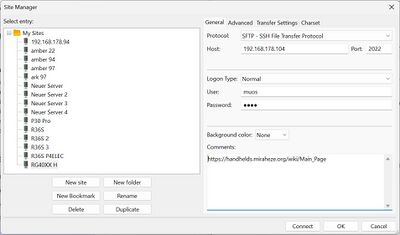
Managing multiple devices/firmwares: FileZilla -> File -> Site Manager -
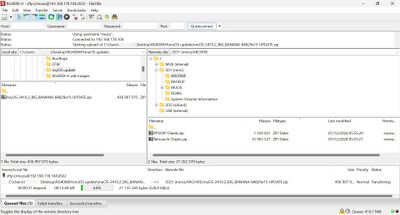
FileZilla interface - video tutorial


Transferring files via WiFi (Knulli)[edit]
For more methods and information, please refer to the documentation of the firmware you are using.
https://knulli.org/de/play/add-games/network-transfer/
Knulli SCP/SFTP connection[edit]
- Host: <YOUR IP ADDRESS>
- Port: 22
- Username: root
- Password: linux
Transferring files via Android Phone[edit]
Use a file manager of your choice with SFTP support. For example:
Syncthing and Backups[edit]
Syncthing Guide: https://retrogamecorps.com/2024/08/11/guide-using-syncthing-with-retro-handhelds/
muOS[edit]
Backup feature: https://muos.dev/help/install#updating-an-existing-install
Knulli[edit]
Backup your current settings: https://knulli.org/configure/reset-to-factory-settings/#back-up-your-current-settings
RetroArch Guides[edit]
Other Stuff[edit]
- Syncthing to sync saves and states between devices
- Portmaster
- Game Streaming/Moonlight
"AppStore" and "File Downloader" GUI[edit]
Download: https://github.com/MrJackSpade/RG35XX-Store/tree/main
Add your application: https://github.com/MrJackSpade/RG35XX-Store/blob/main/AppStore/README.md
Discussion on Reddit: https://www.reddit.com/r/RG35XX/comments/1h0vd35/appstore_and_file_downloader_gui_updates/

muOS Portmaster Guide[edit]
Knulli Portmaster Guide[edit]
https://www.reddit.com/r/SBCGaming/comments/1hoiy8a/ultimate_portmaster_guide_for_knulli_firefly/
Other Projects at the Handhelds Wiki