R36S Problems and Troubleshooting: Difference between revisions
HandheldWiki (talk | contribs) |
HandheldWiki (talk | contribs) |
||
| (3 intermediate revisions by the same user not shown) | |||
| Line 67: | Line 67: | ||
Most common issues that are caused by stock SD cards are: | Most common issues that are caused by stock SD cards are: | ||
* Device not booting | * Device not booting | ||
* Stuck during boot | |||
* Games disappearing | |||
* Themes disappearing | |||
* Corrupting file system | * Corrupting file system | ||
* Saving not working | * Saving not working or saves disappearing | ||
There have also been [https://www.reddit.com/r/R36S/comments/1crogee/people_here_who_didnt_change_the_original_sd_card/ reports] of these cheap cards overheating and destroying the screen. | There have also been [https://www.reddit.com/r/R36S/comments/1crogee/people_here_who_didnt_change_the_original_sd_card/ reports] of these cheap cards overheating and destroying the screen. | ||
| Line 236: | Line 238: | ||
<h3 style="font-size: 1.1em; color: #27ae60; margin-top: 1.2em;">✅ Solution</h3> | <h3 style="font-size: 1.1em; color: #27ae60; margin-top: 1.2em;">✅ Solution</h3> | ||
<ul style="padding-left: 1.2em; line-height: 1.4;"> | <ul style="padding-left: 1.2em; line-height: 1.4;"> | ||
<li>Charge the device with a 5V 1.5A-2A adapter and a USB-A to USB-C cable. Charging via Computer/Laptop USB ports also works fine.</li> | <li>Charge the device with a 5V 1.5A-2A adapter and a USB-A to USB-C cable. Charging via Computer/Laptop USB-A ports also works fine.</li> | ||
<li>Use the cable that was included.</li> | |||
<li>Make sure you use the correct DC port on the left for charging.</li> | |||
</ul> | </ul> | ||
</div> | </div> | ||
Latest revision as of 02:58, 4 April 2026
Common Errors and Problems Overview[edit]
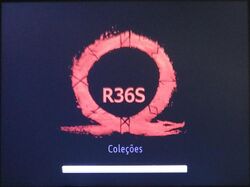
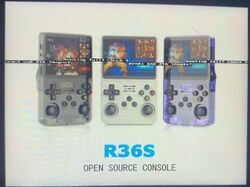
Click on the image or video to get to the section with a short guide how to fix this problem.
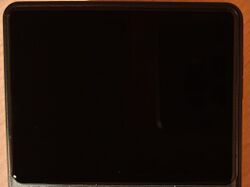



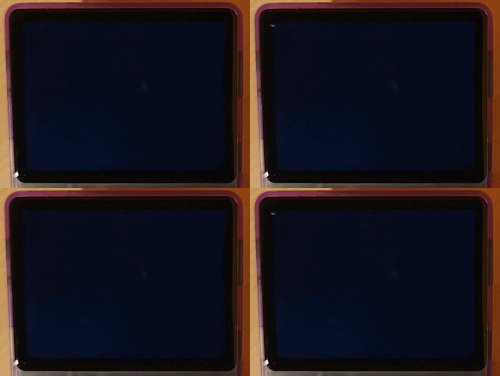

Screen not turning on[edit]
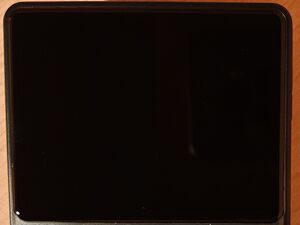
Screen is not turning on if there is no SD card in the TF1 slot

⚠️ Cause
No SD card in the TF1 slot or competely broken SD card.
✅ Solution
See the SD card section below.
Stock SD Cards[edit]
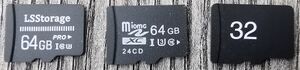
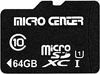
stock SD cards 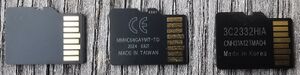
stock SD cards -

stock SD cards - device bought at Flipkart (India) -

stock SD card - Source: reddit


.jpg)

Most common issues that are caused by stock SD cards are:
- Device not booting
- Stuck during boot
- Games disappearing
- Themes disappearing
- Corrupting file system
- Saving not working or saves disappearing
There have also been reports of these cheap cards overheating and destroying the screen.
✅ Solution





Use quality/branded microSD cards. Please refer to the SD Cards section and Compatibility List or check out the buying guide.
Hardware clones[edit]
A lot of problems are caused by Hardware clones. Those "fake" EmuELEC R36S are basically a different device in the R36S shell.
See the R36S Clones page for how to know if you have a clone, working custom firmwares and more info.
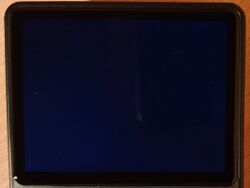
Black Screen[edit]


⚠️ Cause
Wrong "device tree blob" files (.dtb) in the BOOT partition. There are at least 5 different screen versions for the R36S.
✅ Solution (ArkOS Community Firmware)
The latest release of the ArkOS Community Maintained Image for the R36S added a "Panel Picker Mode". Follow the instructions on the release page on Github.
✅ Solution (ArkOS)
You need to use the correct .dtb file. After flashing ArkOS to the SD card, replace the rk3326-r35s-linux.dtb file in the BOOT partition with the one from your original/stock SD card (see Backup).
In case you didn't backup your original rk3326-r35s-linux.dtb file, here's a link to all the different versions: R36S-Device Tree Blob
✅ Solution (AmberELEC)
Rename your original rk3326-r35s-linux.dtb to rk3326-rg351mp-linux.dtb and replace this file on the AMBRELC partition. If you have no sound, use the .dtb files from this link: new DTB files for AmberELEC or use this to fix the sound + the FN button: Panel 4 (V5) AmberELEC sound + FN button fix
✅ Further Troubleshooting
- Try the Panel 4 (V5) version of ArkOS Community Maintained Image
- Make sure you are using the correct dtb file with the correct name
- Delete all .dtb, .tony, .orig and boot.ini files, then copy/paste the dtb files plus the boot.ini from your stock SD card
- Re-flash every time you try different .dtb files
- Replace the .dtb file before booting up the first time
- Delete the .dtb file first instead of replacing it
- Use a different tool for flashing (Rufus, Win32DiskImager, ApplePi-Baker). balenaEtcher is not recommended
- Flash the firmware image on a different PC or with a Android device
- Use a different microSD card
✅ Black Screen Fix Step by Step Guide ('old' guide)
This is a slightly modified guide by u/FreshNoobAcc
- Make sure device has been charged for several hours with a usb A to usb C charger (cable that came with device).
- Flash ArkOS (/or EmulELEC if clone) onto branded SD card. Make sure you are flashing the decompressed ArkOS (/EmulELEC if clone). It should not end in .xz, if it does, decompress it with a program like 7zip.
- Put SD card into device after flashing ArkOS (/EmulELEC if clone).
- Turn on device. Important: leave the device ON for 10 minutes, even if the device shows a black screen, it should be expanding the OS file and working away even if the screen is black. If you see black screen and turn device off too soon, you will corrupt the OS and have to start from step 1 again
- After about 10 minutes, turn device off with the off button (btw, once screen works, try to never do this, always turn off in the game menu)
- Plug SD into computer
- Important: delete all .dtb, .tony, .orig files in the OS partition (if you can’t see it you need to follow the youtube video to find out how to unhide the OS partition with MiniTool Partition Wizard)
- Only after deleting the above files (basically any file that has dtb in the name), copy/paste the dtb files from your stock OS card to the new branded SD card. (There is not always a 1:1 switch, some OS have 3-4 dtb files, others only 2, that is ok).
If you don’t have them (corrupted stock OS card), follow warning 3 in the reddit sidebar and copy/paste in one set of dtb files at a time from the github repository, (one panel at a time) and test the branded SD in the device (see if it turns on) after each copy/paste of dtb files from a panel folder. Best start with newer (higher number) panels and work backwards
- Eject SD. Then plug SD back into r36s
The good thing about this method is if you don’t know which dtb files your device needs (if your SD is DOA) you can quickly swap out/in new dtb files from the github repository (see warning 3 in the reddit sidebar) to test them and don’t necessarily need to re-flash the OS every time you want to test new dtb files (saves about 10 minutes per attempt)
Stuck On The Bootlogo[edit]
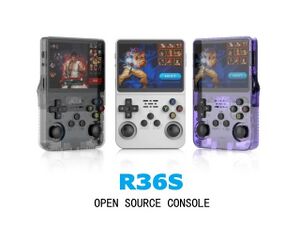
stock SD card boot logo 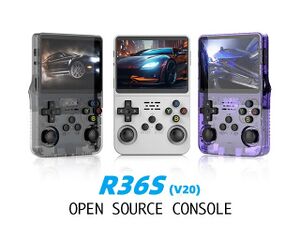
stock SD card boot logo 


⚠️ Cause
SD card problem. That's the bootlogo from the stock SD cards with an outdated firmware.
✅ Solution
Change the SD Card.
Stuck During Loading Emulationstation[edit]


⚠️ Cause
- SD card problem (corrupted roms/bios or other files)
✅ Solution
- Change the SD Card or re-flash your good card.
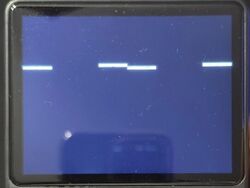
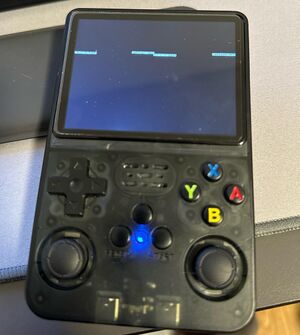
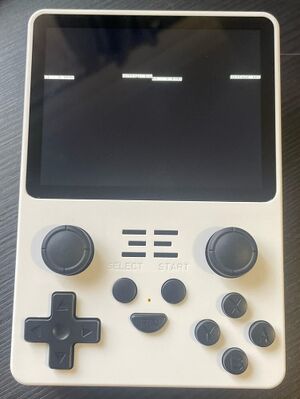
White Lines[edit]
-
Source: reddit -
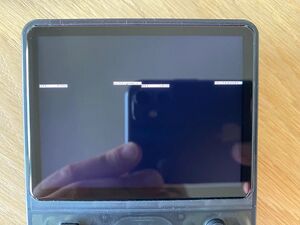
Source: reddit -
Source: reddit -
same error on POWKIDDY RGB20S -

R36S low battery warning advice from a seller - found on some temu listing


⚠️ Cause
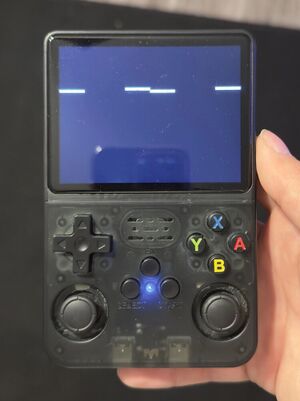
- Battery is empty. It says something like "Voltage level low" if you look closely.
✅ Solution
- Charge the device with a 5V 1.5A-2A adapter and a USB-A to USB-C cable. Charging via Computer/Laptop USB-A ports also works fine.
- Use the cable that was included.
- Make sure you use the correct DC port on the left for charging.
"booting fail! check kernel and dtb images!" error at boot logo[edit]


⚠️ Cause
- SD card problem.
✅ Solution
- Change the SD Card.
Small Blinking Line / Blinking Cursor[edit]


⚠️ Cause
- Blinking Cursor = Looking for TF2 (roms) SD card
- Defect SD card in TF2 slot (most of the times)
- Can happen after upgrading
- Wrong card setting in the menu
✅ Solution
-
Thanks to jason_.x for this tip!
- Change the defect TF2 SD card or re-flash the TF1 SD Card.
- [Not very likely] If both cards are good you can change the rom card slot via a script. Read the comments in this reddit thread.
can be repaired without doing a new flash with a Mac, just select the grayed out disk in the disk utility, click on S.O.S (wait for it to finish) then click on mount and presto the partition appears and no more Small Blinking Line / Blinking Cursor
Themes Keep Disappearing[edit]


⚠️ Cause
- SD card problem - SD card is slowly corrupting/dying
✅ Solution
- Change the SD Card

Stuck in RetroArch[edit]
-
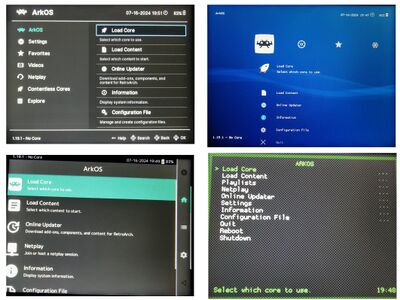
different RetroArch "menu driver"

⚠️ Cause
- Accidentally enabled the option to use RetroArch as the main frontend.
✅ Solution
- Reboot the device and hold B to enter "Boot and Recovery Tools" (BaRT) and choose "Emulationstation".
-
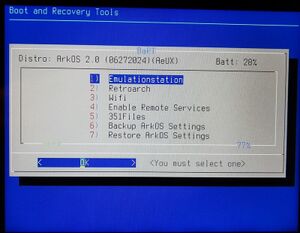
Hold B button during boot to enter this menu (ArkOS)

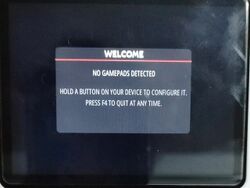
No Gamepads Detected[edit]
-

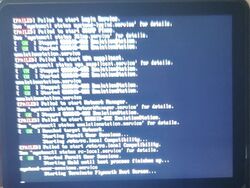
error during boot

⚠️ Cause
- Wrong .dtb or boot.ini file
- SD card problem
- Firmware problem
✅ Solution
- Re-flash the firmware
- Use the correct .dtb file or change the R36S SD Card
- This error can also be fixed by replacing the boot.ini file (see this comment)
Joystick Problems - Stick Drift[edit]
⚠️ Cause
- Common problem in lots of controllers. Can have different causes.
- loose connector cable
- defective joystick
- SD card / software related problem
✅ Solution
- Re-seat loose-connector cablek
- Change the joystick (you can use any switch style joystick)
- Read this thread for possible solutions or look for threads with similar problems.
-
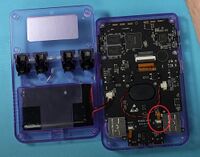
connector cable

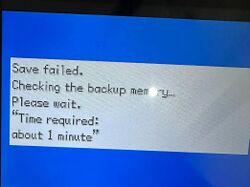
Saving not working / Can't save / Stuck at saving[edit]
Problems with saving can have different causes.
-

Save error in Pokemon caused by corrupt/bad rom file - source

⚠️ Cause
- SD card problem
- Bad rom dumps (from the stock SD cards)
- Can also be a user error like not shutting down the device correctly which can cause problems.
✅ Solution
- Change the SD card
- Change the bad roms that were included in the stock SD card
- Shut down your device safely from within the menu or the FN+Power hotkey
- Don't press the reset button to exit your game
Emulator Settings Keep Resetting[edit]
✅ Don't forget to save the RetroArch configuration file after changing things or use overrides.
Error Message During Boot (EmuELEC clone)[edit]
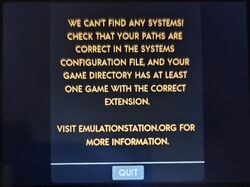
"Can't find any systems"
✅ Solution: Install one of the available custom firmware for R36S clones to a new SD card.


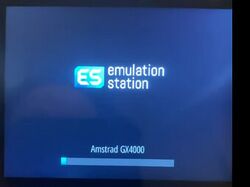
Stuck During Boot (EmuELEC clone)[edit]
✅ Solution: Install one of the custom firmware for R36S clones to a new SD card.


Red blinking light during boot (EmuELEC clone)[edit]
This happens when you install the standard (or community maintained) ArkOS custom firmware on a EmuELEC clone.
✅ Solution: Install one of the custom firmware for R36S clones to a new SD card.
Missing dtb file on SD card (EmuELEC clone)[edit]
-
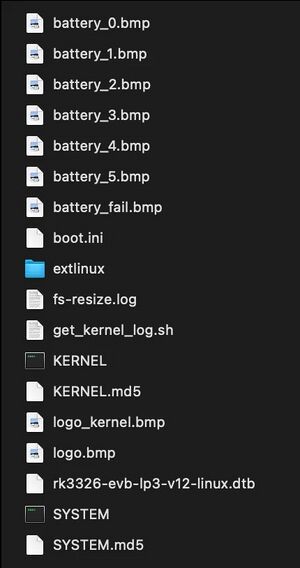
different files on the Boot partition

If your stock SD card has the 📄rk3326-evb-lp3-v12-linux.dtb or 📄rf3536k3ka.dtb file, you got the EmuELEC Clone that is not compatible with standard ArkOS or AmberELEC custom firmware. See the R36S Clones page for more info.
Other Projects at the Handhelds Wiki