R36S Guides Tutorials HowTos: Difference between revisions
HandheldWiki (talk | contribs) No edit summary |
HandheldWiki (talk | contribs) No edit summary |
||
| Line 29: | Line 29: | ||
{{R36S sd card}} | {{R36S sd card}} | ||
{{SectionStyleEnd}} | |||
{{SectionStyleStart}} | |||
= Identify your screen version = | |||
Knowing which screen type your R36S has is going to be helpful during installing custom firmware. Use the tool at this link: | |||
[https://aeolusux.github.io/ArkOS-R3XS/tools/dtbIdentify.htm Which Screen Do I Have?] | |||
{{SectionStyleEnd}} | {{SectionStyleEnd}} | ||
Revision as of 10:36, 28 June 2025
Backup your stock SD card
-
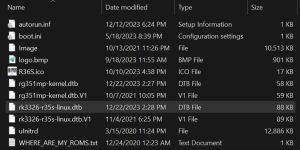
BOOT partition of a R36S with the original (V1) screen -
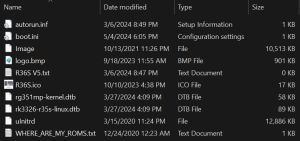
BOOT partition of a R36S with the panel 4 (V5) screen -
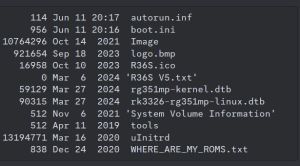
Different BOOT partition of a R36S with the panel 4 (V5) screen


This is the first step you should take before doing anything with your console. Save the contents of the microSD to your computer.
The 📄rk3326-r35s-linux.dtb or 📄rk3326-rg351mp-linux.dtb from the 📁BOOT partition is the most important file. You're probably going to need this to fix the problems that the 5 different screen / display panel versions often create (black screen issue).
My original SD card got corrupted before I could make a backup
R36S-Device Tree Blob - dtb files at GitHub
Panel 4 (V5) AmberELEC sound + FN button fix
I don't have these files on my SD card
If you have a 📁EELEC partition or your files are 📄rk3326-evb-lp3-v12-linux.dtb or 📄rf3536k3ka.dtb, you got the EmuELEC Clone that is not compatible with standard ArkOS/AmberELEC.
Change the stock SD card
Identify your screen version
Knowing which screen type your R36S has is going to be helpful during installing custom firmware. Use the tool at this link:
Firmware Flashing Guide
Custom Firmware
There are multiple firmware options for the R36S Handheld. Please refer to the R36S Custom Firmware page and choose one.
Software needed
Firmware flashing tool like Rufus, Raspberry Pi Imager or Win32 Disk Imager
In this guide the portable version of Rufus has been used.
Step-by-Step Guide
1) Select your new SD card, the firmware image and click on start

2) Click OK to confirm. Make sure you selected the correct drive/SD card.

3) Wait till the flashing process is finished.

4) Close Rufus

5) Remove USB safely
6) First boot up
Insert the SD card into your device and press the power button. Rom folders and other stuff will now be generated. This process usually takes about 5 minutes (wait till the menu is loaded). Now the SD card is ready and you can add your game files and roms.
7) Gaming time
Have fun playing!

Video Guides - Tutorials - How-To's
Install ArkOS
Install ArkOS on 'clones'
Older Guides
Some of these are missing crucial steps for installing ArkOS on "Panel 4 devices", but are good guides for setting up emulators etc.
R35S/R36S Ultimate Setup Guide - ArkOS, Roms and BIOS (by Joey's Retro Handhelds)
R36S MASTER Starter Guide (by Javi Play Retro)
R36s guide for beginners in 2024 (by Jacek Rusin)
Install ArkOS using macOS
Written Guides - Tutorials - How-To's
A guide on getting started with you R36s and more (by AMSanchezC)
R35S/R36S Setup Guide (by Joey's Retro Handhelds)
R36S BASIC CONFIGURATION (by KuvZz)
R3XS Beginners Comprehensive Guide (by AeolusUX)
Flashing/Installation Guide for ArkOS v2.0 (by AeolusUX)
My R36S user manual (by Clitch77)
SPANISH Guia Definitiva De La Consola R36S (by ElVickz)
FRENCH R36S guide/wiki (by Daebis)
R36S Türkiye Topluluğu (by VicettiSun)
Install ArkOS without a PC using Android Devices
Other Projects at the Handhelds Wiki