R36S Hotkeys: Difference between revisions
From Handhelds Wiki
Jump to navigationJump to search
HandheldWiki (talk | contribs) No edit summary |
HandheldWiki (talk | contribs) No edit summary |
||
| Line 1: | Line 1: | ||
{{R36S Handheld Wiki page navigation new}}{{TOC|limit=2}} | {{R36S Handheld Wiki page navigation new}}{{TOC|limit=2}} | ||
{{SectionStyleStart}} | |||
== R36S Buttons == | == R36S Buttons == | ||
<div><ul> | <div><ul> | ||
| Line 6: | Line 7: | ||
</ul></div> | </ul></div> | ||
{{SectionStyleEnd}} | |||
{{SectionStyleStart}} | |||
== Standard Hotkeys == | == Standard Hotkeys == | ||
| Line 27: | Line 30: | ||
|} | |} | ||
{{SectionStyleEnd}} | |||
{{SectionStyleStart}} | |||
== How to change RetroArch Hotkeys == | == How to change RetroArch Hotkeys == | ||
| Line 67: | Line 72: | ||
|Screenshot || {{key press|FN|B}} | |Screenshot || {{key press|FN|B}} | ||
|} | |} | ||
{{SectionStyleEnd}} | |||
{{Movetotop}} | {{Movetotop}} | ||
Revision as of 07:34, 29 May 2025
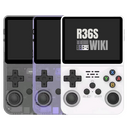
R36S Buttons


Standard Hotkeys
| ArkOS Community Maintained Image | ArkOS | AmberELEC | |
|---|---|---|---|
| Link | Global event keys and emulator event keys | Global event keys and emulator event keys | Getting to Know AmberELEC - Controls and Hot Keys |
| Preview/Screenshot |  |
 |
 |
How to change RetroArch Hotkeys
RetroArch Hotkeys can be fully customized within the RetroArch menu. Press Y to delete existing hotkeys.
-

Navigate to RetroArch in the system list -

Open RETROARCH (RETROARCH32 is mainly used for PS1/PSX games) -

Navigate to Settings -

Navigate to Input -

Navigate to Hotkeys -

Change hotkeys to your liking -

Navigate back to Configuration File -

Save Current Configuration


| Function | Button(s) |
|---|---|
| Hotkey Button | FN |
| Open Quick Menu | FN+X |
| Quit | FN+Start (2x) |
| Fast-Forward | FN+R2 |
| Rewind | FN+L2 |
| Select Save Slot | FN+D-Pad ↑ or ↓ |
| Save State | FN+R1 |
| Load State | FN+L1 |
| Display FPS | FN+Y |
| Screenshot | FN+B |
Other Projects at the Handhelds Wiki